
Introducing Our Madden 26 Deep Scout Tool For Franchise Mode
We are pleased to announce our biggest new tool in nearly 10 years: The Franchise Deep Scout Tool! It is now available for our Madden School Unlimited members while it’s in beta.
It uses our proprietary Deep Scout algorithm, takes into account hundreds of thousands of data points, and is incredibly accurate.
You simply take 3 screenshots (or clear camera pictures) of an incoming rookie’s scouting report, physical, and skills tabs and our deep scout algorithm will return extremely important information like overall rating, speed, dev trait, and much more!
Here is how it works:
How To Use Deep Scout
Madden School Unlimited members have first access to the Deep Scout Tool. If you aren’t already a member, now is a great time to join!
You then go to the Deep Scout section of our website where you’ll see this screen.
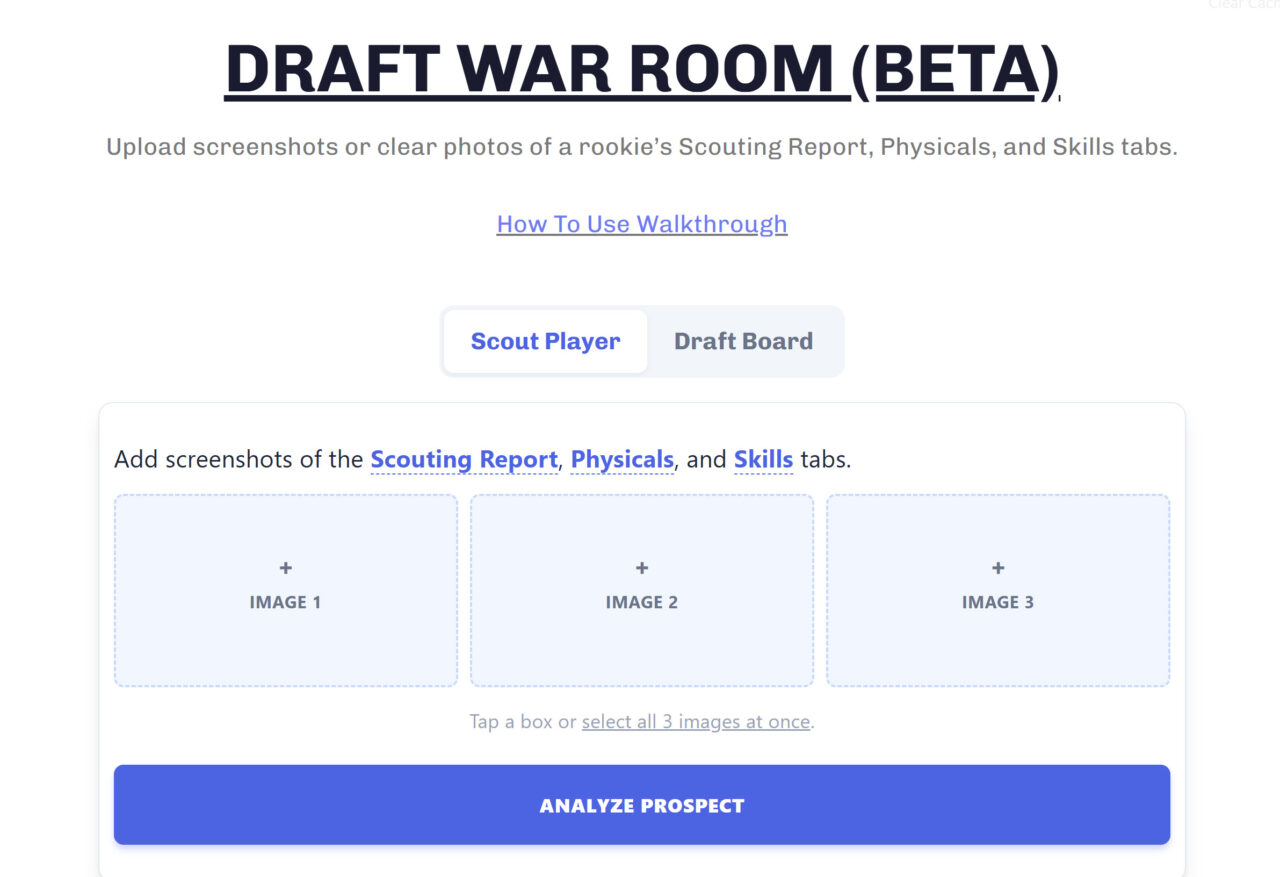
Notice the two tabs. First is “Scout Player” which is the screen we are on, and then you have “Draft Board” which is where you can add the players you have scouted (which we’ll cover later).
The Scout Player tab uses our proprietary Deep Scout algorithm to analyze 3 screenshots (that you provide) and tell you exactly what to expect from that rookie including dev trait, overall rating, speed, etc.
Those screenshots are of the scouting report tab, the physicals tab, and the skills tab. This is best done sometime in the offseason (as close to the draft as possible so we have the most data).
In case you don’t know how: Here is some helpful information on how to get screenshots from a PlayStation 5 or XBOX Series X/S onto your phone or computer.

Once we have uploaded our 3 screenshots (shown above) we then click on “Analyze Prospect” which runs your screenshots through our proprietary Deep Scout Algorithm.
This process usually takes around 5 seconds. Once it is complete, you get a report detailing what to expect from that prospect.
It will look something like this:

Depending on how well you’ve scouted a player it will give you specific ranges for what to expect from each rating as well as their expected dev trait.
You can then add the player to your draft board to save this player and his ratings for later or scout another player.
Like any tool, our Deep Scout is incredibly accurate but not perfect. It requires you to use the tool correctly. There are a few important things that you can do to help make your scouting as accurate as possible.
How To Do Your Part
First, the quality of the information we can give you is directly tied to how well you have scouted a player. If you get to 90% scouted or higher, our tool becomes incredibly accurate. If you input a player that is only 60% scouted, we can still give you a lot of information but it won’t be nearly as useful as a 90% scouted player.
Second, the accuracy of our Deep Scout algorithm is directly tied to the quality of the screenshots or photos you upload. Low quality pictures will produce low quality (and sometimes inaccurate) results.
Ideally, you take direct screenshots from your console like the one below. Those will be the most accurate.
You will want to take 3 screenshots. The first of the Scouting Report tab, the second of the Physicals tab, and the third of the Skills tab (in the top left corner).
Here is an example of a perfect screenshot taken directly from the console.

However, you can also use well centered and focused photos of your television/monitor taken with a phone camera.
Here is an example of what that looks like:
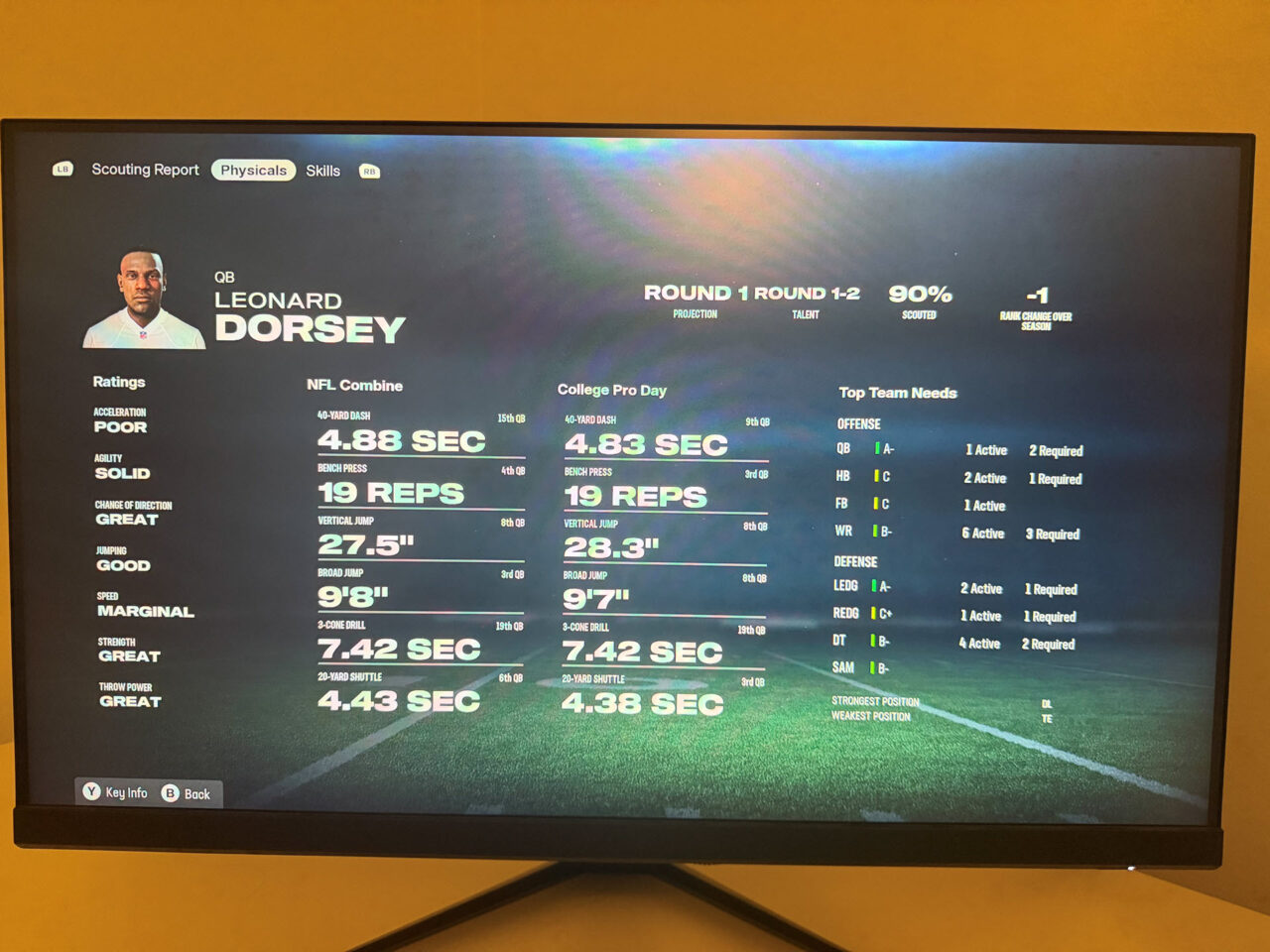
Anything more cluttered or less focused than this image runs the risk of introducing errors or inaccuracies.
The takeaway here is that the quality of our Deep Scout tool is directly tied to the quality of the data you provide us.
Once you upload your 3 screenshots, you will get a report that looks like this:
In our initial testing, our tool is about 95% accurate. Certainly not perfect, but enough to give you a huge advantage in your franchise.
Along with the Deep Scouting of a player, we also offer the ability to build your own draft board.
Draft Board
You have the ability to add any player you scout to your draft board (up to 100 at a time).
You can move players up, down, or remove them entirely once they are on your board.
Here is an example of the top of our draft board.

You have the option to click into any player and view their full ratings details.
In this example, we click into the WR we have at the very top of our draft board.
He was only partially scouted in game. Because of that we don’t have perfect information on him (we are missing projected overall and some other ratings) but we do know his dev trait, speed, and lots of other important ratings are going to be very good.
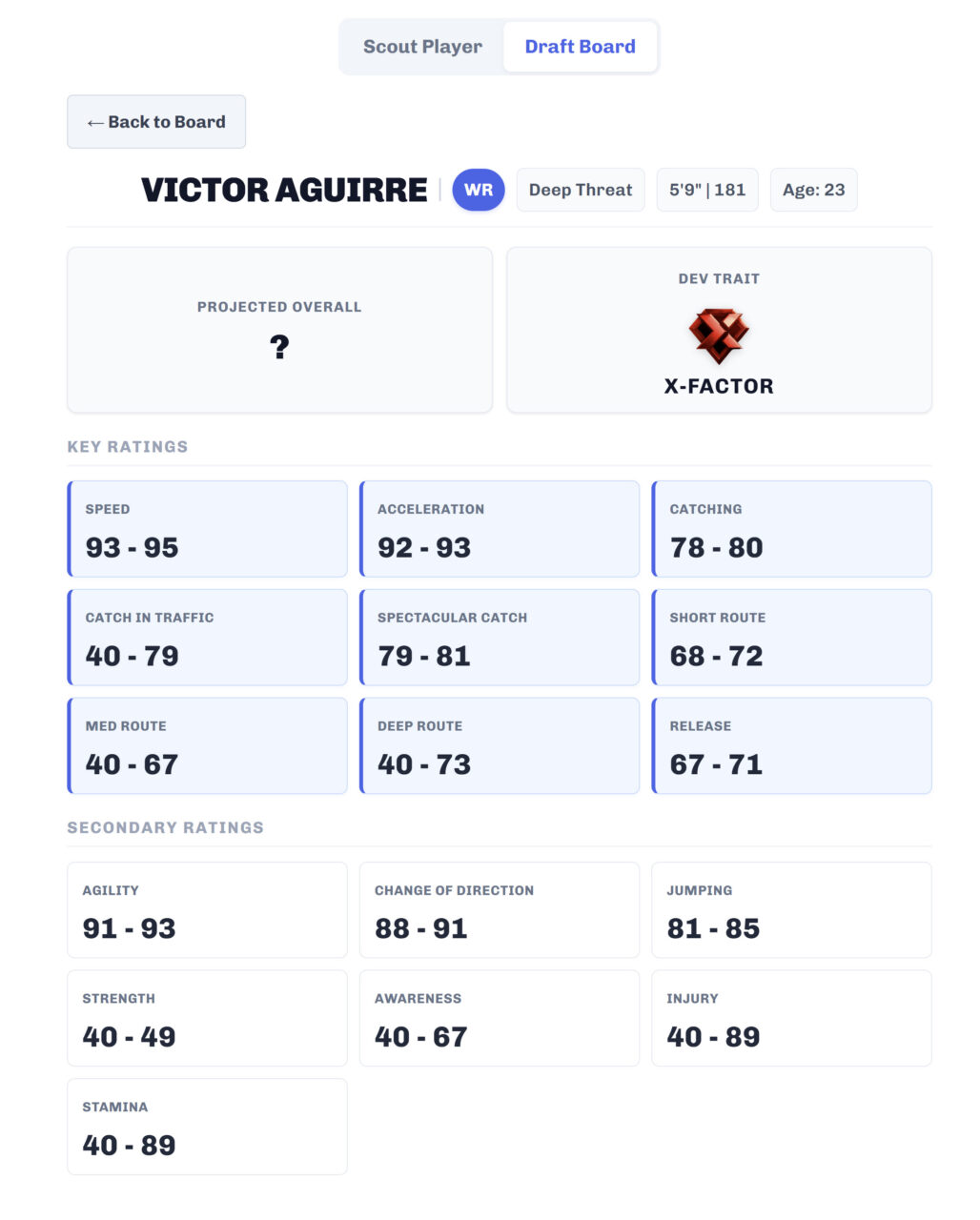
After we view his details we can simply click on the “Back to Board” button to be taken back to our full draft board.
As the draft goes on, you can delete players who are already selected from your draft board or clear the board entirely once it is over.
Questions or Problems?
If you are using the Deep Scout tool and run into questions, problems, or inaccurate information, please let us know!
The Deep Scout tool is available exclusively to our Madden School Unlimited members (while in beta testing). If everything goes well, we hope to bring it to the general public later in the year.